<!DOCTYPE html>
    <html lang="vi" xmlns="http://www.w3.org/1999/xhtml" prefix="og: http://ogp.me/ns#">
    <head>
<title>Bốn bước tạo biểu đồ Excel</title>
<meta name="description" content="Bốn bước tạo biểu đồ Excel - Savefile - VDC News">
<meta name="author" content="SỬA MACBOOK SỬA CHỮA MACBOOK IMAC MAC PRO CHỮA LAPTOP HÀ NỘI">
<meta name="copyright" content="SỬA MACBOOK SỬA CHỮA MACBOOK IMAC MAC PRO CHỮA LAPTOP HÀ NỘI [ceo@suachuamaytinh.vn]">
<meta name="robots" content="index, archive, follow, noodp">
<meta name="googlebot" content="index,archive,follow,noodp">
<meta name="msnbot" content="all,index,follow">
<meta name="generator" content="NukeViet v4.4">
<meta http-equiv="Content-Type" content="text/html; charset=utf-8">
<meta property="og:title" content="Bốn bước tạo biểu đồ Excel">
<meta property="og:type" content="website">
<meta property="og:description" content="Savefile - VDC News">
<meta property="og:site_name" content="SỬA MACBOOK SỬA CHỮA MACBOOK IMAC MAC PRO CHỮA LAPTOP HÀ NỘI">
<link rel="shortcut icon" href="https://suachuamaytinh.vn/favicon.ico">
<link rel="canonical" href="https://suachuamaytinh.vn/MS-Excel/Bon-buoc-tao-bieu-do-Excel-469.html">
<link rel="alternate" href="https://suachuamaytinh.vn/rss/" title="VDC News" type="application/rss+xml">
<link rel="alternate" href="https://suachuamaytinh.vn/rss/APPLE-HA-NOI/" title="VDC News - APPLE HÀ NỘI" type="application/rss+xml">
<link rel="alternate" href="https://suachuamaytinh.vn/rss/DICH-VU-SUA-CHUA-MACBOOK-IMAC-IPHONE-IPAD/" title="VDC News - DỊCH VỤ SỬA CHỮA MACBOOK IMAC IPHONE IPAD" type="application/rss+xml">
<link rel="alternate" href="https://suachuamaytinh.vn/rss/TU-VAN-KY-THUAT-CHIA-SE-KINH-NGHIEM-HUONG-DAN-APPLE-MACBOOK-IMAC-IPHONE-IPAD/" title="VDC News - TƯ VẤN KỸ THUẬT CHIA SẺ KINH NGHIỆM HƯỚNG DẪN APPLE MACBOOK IMAC IPHONE IPAD" type="application/rss+xml">
<link rel="alternate" href="https://suachuamaytinh.vn/rss/Dich-vu-sua-chua-va-ky-thuat/" title="VDC News - Dịch vụ sửa chữa" type="application/rss+xml">
<link rel="alternate" href="https://suachuamaytinh.vn/rss/Chuyen-Nghiep/" title="VDC News - Chuyên Nghiệp" type="application/rss+xml">
<link rel="alternate" href="https://suachuamaytinh.vn/rss/Phan-cung-chuyen-sau/" title="VDC News - Phần cứng chuyên sâu" type="application/rss+xml">
<link rel="alternate" href="https://suachuamaytinh.vn/rss/Laptop-may-tinh-xach-tay/" title="VDC News - Laptop máy tính xách tay" type="application/rss+xml">
<link rel="alternate" href="https://suachuamaytinh.vn/rss/Mainboard-bo-mach-chu/" title="VDC News - Mainboard bo mạch chủ" type="application/rss+xml">
<link rel="alternate" href="https://suachuamaytinh.vn/rss/CPU-bo-vi-su-ly/" title="VDC News - CPU bộ vi sử lý" type="application/rss+xml">
<link rel="alternate" href="https://suachuamaytinh.vn/rss/Dien-tu-co-ban/" title="VDC News - Điện tử cơ bản" type="application/rss+xml">
<link rel="alternate" href="https://suachuamaytinh.vn/rss/Nguon-ATX-PSU-power-supply/" title="VDC News - Nguồn ATX - PSU - power supply" type="application/rss+xml">
<link rel="alternate" href="https://suachuamaytinh.vn/rss/Moniter-man-hinh-may-tinh/" title="VDC News - Moniter màn hình máy tính" type="application/rss+xml">
<link rel="alternate" href="https://suachuamaytinh.vn/rss/USB-MP3-MP4/" title="VDC News - USB-MP3-MP4" type="application/rss+xml">
<link rel="alternate" href="https://suachuamaytinh.vn/rss/Kien-thuc-tin-hoc/" title="VDC News - Kiến thức tin học" type="application/rss+xml">
<link rel="alternate" href="https://suachuamaytinh.vn/rss/Thu-thuat-may-tinh/" title="VDC News - Thủ thuật máy tính " type="application/rss+xml">
<link rel="alternate" href="https://suachuamaytinh.vn/rss/Thu-thuat-van-phong/" title="VDC News - Thủ thuật văn phòng " type="application/rss+xml">
<link rel="alternate" href="https://suachuamaytinh.vn/rss/MS-PowerPoint/" title="VDC News - MS PowerPoint" type="application/rss+xml">
<link rel="alternate" href="https://suachuamaytinh.vn/rss/MS-Word/" title="VDC News - MS Word" type="application/rss+xml">
<link rel="alternate" href="https://suachuamaytinh.vn/rss/MS-Excel/" title="VDC News - MS Excel" type="application/rss+xml">
<link rel="alternate" href="https://suachuamaytinh.vn/rss/Cach-diet-virus/" title="VDC News - Cách diệt virus " type="application/rss+xml">
<link rel="alternate" href="https://suachuamaytinh.vn/rss/Cong-cu-diet-Virus/" title="VDC News - Công cụ diệt Virus " type="application/rss+xml">
<link rel="alternate" href="https://suachuamaytinh.vn/rss/Bao-mat-virus/" title="VDC News - Bảo mật, virus " type="application/rss+xml">
<link rel="alternate" href="https://suachuamaytinh.vn/rss/Huong-dan-su-dung-phan-mem/" title="VDC News - Hướng dẫn sử dụng phần mềm" type="application/rss+xml">
<link rel="alternate" href="https://suachuamaytinh.vn/rss/Tin-Tuc-Cong-Nghe-Thong-Tin/" title="VDC News - Tin Tức Công Nghệ Thông Tin" type="application/rss+xml">
<link rel="alternate" href="https://suachuamaytinh.vn/rss/Vien-thong/" title="VDC News - Viễn thông" type="application/rss+xml">
<link rel="alternate" href="https://suachuamaytinh.vn/rss/Tien-Ich/" title="VDC News - Tiện Ích" type="application/rss+xml">
<link rel="alternate" href="https://suachuamaytinh.vn/rss/Khoa-hoc-may-tinh/" title="VDC News - Khoa học máy tính" type="application/rss+xml">
<link rel="alternate" href="https://suachuamaytinh.vn/rss/Lap-trinh/" title="VDC News - Lập trình" type="application/rss+xml">
<link rel="alternate" href="https://suachuamaytinh.vn/rss/Do-hoa-vi-tinh/" title="VDC News - Đồ họa vi tính" type="application/rss+xml">
<link rel="alternate" href="https://suachuamaytinh.vn/rss/He-Dieu-Hanh/" title="VDC News - Hệ Điều Hành" type="application/rss+xml">
<link rel="alternate" href="https://suachuamaytinh.vn/rss/Thu-thuat-seo/" title="VDC News - Thủ thuật seo" type="application/rss+xml">
<link rel="alternate" href="https://suachuamaytinh.vn/rss/Review-san-pham/" title="VDC News - Review sản phẩm" type="application/rss+xml">
<link rel="alternate" href="https://suachuamaytinh.vn/rss/Nguon-may-tinh-power-supply/" title="VDC News - Nguồn máy tính power supply" type="application/rss+xml">
<link rel="alternate" href="https://suachuamaytinh.vn/rss/Man-hinh-Moniter/" title="VDC News - Màn hình Moniter" type="application/rss+xml">
<link rel="alternate" href="https://suachuamaytinh.vn/rss/Chuot-may-tinh-mouse/" title="VDC News - Chuột máy tính mouse" type="application/rss+xml">
<link rel="alternate" href="https://suachuamaytinh.vn/rss/CARD-man-hinh-VGA/" title="VDC News - CARD màn hình VGA" type="application/rss+xml">
<link rel="alternate" href="https://suachuamaytinh.vn/rss/Bo-mach-chu-MAINBOARD/" title="VDC News - Bo mạch chủ MAINBOARD" type="application/rss+xml">
<link rel="alternate" href="https://suachuamaytinh.vn/rss/Linh-tinh/" title="VDC News - Linh tinh" type="application/rss+xml">
<link rel="alternate" href="https://suachuamaytinh.vn/rss/O-cung-Hard-disk-drive/" title="VDC News - Ổ cứng - Hard disk drive" type="application/rss+xml">
<link rel="alternate" href="https://suachuamaytinh.vn/rss/Vo-may-tinh-CASE/" title="VDC News - Vỏ máy tính - CASE" type="application/rss+xml">
<link rel="alternate" href="https://suachuamaytinh.vn/rss/Bo-tan-nhiet/" title="VDC News - Bộ tản nhiệt" type="application/rss+xml">
<link rel="alternate" href="https://suachuamaytinh.vn/rss/Mang-khong-day-ROUTER-WIRELESS/" title="VDC News - Mạng không dây - ROUTER WIRELESS" type="application/rss+xml">
<link rel="alternate" href="https://suachuamaytinh.vn/rss/May-tinh-xach-tay-LAPTOP/" title="VDC News - Máy tính xách tay - LAPTOP" type="application/rss+xml">
<link rel="alternate" href="https://suachuamaytinh.vn/rss/Ram-bo-nho-trong/" title="VDC News - Ram - bộ nhớ trong" type="application/rss+xml">
<link rel="alternate" href="https://suachuamaytinh.vn/rss/CPU-bo-vi-xu-ly/" title="VDC News - CPU bộ vi xử lý" type="application/rss+xml">
<link rel="alternate" href="https://suachuamaytinh.vn/rss/May-tinh-bang/" title="VDC News - Máy tính bảng" type="application/rss+xml">
<link rel="alternate" href="https://suachuamaytinh.vn/rss/Kien-thuc-su-dung-Laptop-dung-cach/" title="VDC News - Kiến thức sử dụng Laptop đúng cách" type="application/rss+xml">
<link rel="alternate" href="https://suachuamaytinh.vn/rss/Huong-dan-su-dung/" title="VDC News - Hướng  dẫn sử dụng" type="application/rss+xml">
<link rel="alternate" href="https://suachuamaytinh.vn/rss/Thu-thuat-kinh-nghiem/" title="VDC News - Thủ thuật kinh nghiệm" type="application/rss+xml">
<link rel="alternate" href="https://suachuamaytinh.vn/rss/Tu-van-chon-laptop/" title="VDC News - Tư vấn chọn laptop" type="application/rss+xml">
<link rel="alternate" href="https://suachuamaytinh.vn/rss/Thong-tin-khoa-hoc/" title="VDC News - Thông tin khoa học" type="application/rss+xml">
<link rel="alternate" href="https://suachuamaytinh.vn/rss/Khoa-hoc-vu-tru/" title="VDC News - Khoa học vũ trụ" type="application/rss+xml">
<link rel="alternate" href="https://suachuamaytinh.vn/rss/Phat-minh-khoa-hoc/" title="VDC News - Phát minh khoa học" type="application/rss+xml">
<link rel="alternate" href="https://suachuamaytinh.vn/rss/Cong-trinh-khoa-hoc/" title="VDC News - Công trình khoa học" type="application/rss+xml">
<link rel="alternate" href="https://suachuamaytinh.vn/rss/Cong-nghe-moi/" title="VDC News - Công nghệ mới" type="application/rss+xml">
<link rel="alternate" href="https://suachuamaytinh.vn/rss/Suy-Ngam/" title="VDC News - Suy Ngẫm" type="application/rss+xml">
<link rel="alternate" href="https://suachuamaytinh.vn/rss/Thu-gian/" title="VDC News - Thư giãn" type="application/rss+xml">
<link rel="alternate" href="https://suachuamaytinh.vn/rss/The-gioi/" title="VDC News - Thế giới" type="application/rss+xml">
<link rel="alternate" href="https://suachuamaytinh.vn/rss/Phan-tich/" title="VDC News - Phân tích" type="application/rss+xml">
<link rel="preload" as="script" href="https://suachuamaytinh.vn/assets/js/jquery/jquery.min.js">
<link rel="preload" as="script" href="https://suachuamaytinh.vn/assets/js/language/vi.js">
<link rel="preload" as="script" href="https://suachuamaytinh.vn/assets/js/DOMPurify/purify.js">
<link rel="preload" as="script" href="https://suachuamaytinh.vn/assets/js/global.js">
<link rel="preload" as="script" href="https://suachuamaytinh.vn/assets/js/site.js">
<link rel="preload" as="script" href="https://suachuamaytinh.vn/themes/default/js/news.js">
<link rel="preload" as="script" href="https://suachuamaytinh.vn/themes/default/js/main.js">
<link rel="preload" as="script" href="https://suachuamaytinh.vn/themes/default/js/custom.js">
<link rel="preload" as="script" href="https://suachuamaytinh.vn/themes/default/js/bootstrap.min.js">
<link rel="stylesheet" href="https://suachuamaytinh.vn/assets/css/font-awesome.min.css">
<link rel="stylesheet" href="https://suachuamaytinh.vn/themes/default/css/bootstrap.non-responsive.css">
<link rel="stylesheet" href="https://suachuamaytinh.vn/themes/default/css/style.css">
<link rel="stylesheet" href="https://suachuamaytinh.vn/themes/default/css/style.non-responsive.css">
<link rel="StyleSheet" href="https://suachuamaytinh.vn/themes/default/css/news.css">
<link rel="stylesheet" href="https://suachuamaytinh.vn/themes/default/css/custom.css">
<style type="text/css">
	body{background: #fff;}
</style>
    </head>
    <body>
<div id="print">
	<div id="hd_print">
		<h2 class="pull-left">SỬA MACBOOK SỬA CHỮA MACBOOK IMAC MAC PRO CHỮA LAPTOP HÀ NỘI</h2>
		<p class="pull-right"><a title="SỬA MACBOOK SỬA CHỮA MACBOOK IMAC MAC PRO CHỮA LAPTOP HÀ NỘI" href="https://suachuamaytinh.vn/">https://suachuamaytinh.vn</a></p>
	</div>
	<div class="clear"></div>
	<hr />
	<div id="content">
		<h1>Bốn bước tạo biểu đồ Excel</h1>
		<ul class="list-inline">
			<li>Chủ nhật - 06/02/2011 05:28</li>
			<li class="hidden-print txtrequired"><em class="fa fa-print">&nbsp;</em><a title="In ra" href="javascript:;" onclick="window.print()">In ra</a></li>
			<li class="hidden-print txtrequired"><em class="fa fa-power-off">&nbsp;</em><a title="Đóng cửa sổ này" href="javascript:;" onclick="window.close()">Đóng cửa sổ này</a></li>
		</ul>
		<div class="clear"></div>
		<div id="hometext">
			Việc tạo lập bảng là điều hoàn toàn đương nhiên trong Microsoft Excel, tuy nhiên từ những thông tin trong bảng để đưa ra một kết quả phân tích mới là điều đáng nói. Bài này sẽ hướng dẫn các bạn 4 bước để tạo một biểu đồ Excel dựa vào trình Wizard.
		</div>
		<div id="bodytext" class="clearfix">
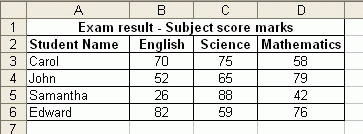
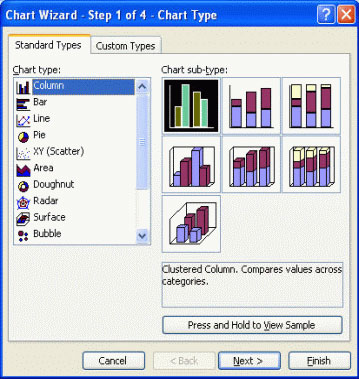
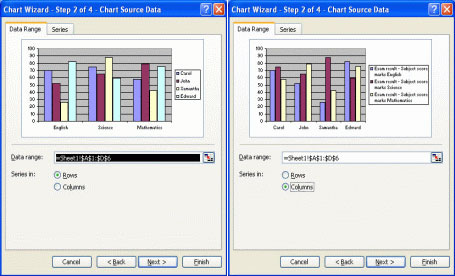
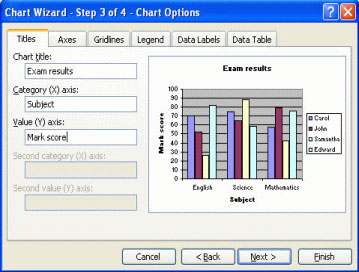
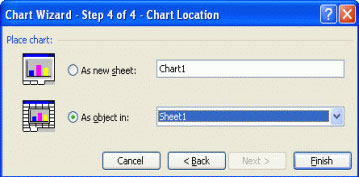
			<p> &nbsp;</p><p align="justify" style="margin-top: 15px; margin-right: 0px; margin-bottom: 0px; margin-left: 0px; padding-top: 0px; padding-right: 0px; padding-bottom: 0px; padding-left: 0px; font-size: 13px; line-height: 19px; "> <br  /> <br  /> Chúng ta sử dụng từng bước trong C-hart Wizard để tạo một biểu đồ thể hiện kết quả bài kiểm tra của sinh viên đối với các môn English, Science, Mathematics</p><p align="center" style="margin-top: 15px; margin-right: 0px; margin-bottom: 0px; margin-left: 0px; padding-top: 0px; padding-right: 0px; padding-bottom: 0px; padding-left: 0px; font-size: 13px; line-height: 19px; "> <img alt="" src="http://www.quantrimang.com.vn/photos/image/062008/18/excel-t6-1.jpg" /></p><p align="justify" style="margin-top: 15px; margin-right: 0px; margin-bottom: 0px; margin-left: 0px; padding-top: 0px; padding-right: 0px; padding-bottom: 0px; padding-left: 0px; font-size: 13px; line-height: 19px; "> <strong style="font-style: normal; font-weight: bold; "><font color="rgb(0, 0, 255);">Bước 1: Loại biểu đồ&nbsp;</font></strong><br  /> <br  /> - Kích vào một ô dữ liệu bất kỳ có chứa thông tin bạn muốn đưa vào biểu đồ, hoặc bôi đen chính xác dữ liệu cần hiển thị trong biểu đồ.&nbsp;<br  /> <br  /> - Kích vào biểu tượng&nbsp;<strong style="font-style: normal; font-weight: bold; ">C-hart Wizard</strong>&nbsp;trên thanh công cụ&nbsp;<strong style="font-style: normal; font-weight: bold; ">Standar</strong>. Hộp thoại C-hart Wizard hiện thị:</p><p align="center" style="margin-top: 15px; margin-right: 0px; margin-bottom: 0px; margin-left: 0px; padding-top: 0px; padding-right: 0px; padding-bottom: 0px; padding-left: 0px; font-size: 13px; line-height: 19px; "> <img alt="" src="http://www.quantrimang.com.vn/photos/image/062008/18/excel-t6-2.jpg" /></p><p align="justify" style="margin-top: 15px; margin-right: 0px; margin-bottom: 0px; margin-left: 0px; padding-top: 0px; padding-right: 0px; padding-bottom: 0px; padding-left: 0px; font-size: 13px; line-height: 19px; "> - Từ&nbsp;<strong style="font-style: normal; font-weight: bold; ">C-hart type:</strong>&nbsp;Lựa chọn kiểu biểu đồ bạn muốn tạo&nbsp;<br  /> <br  /> - Sau đó từ&nbsp;<strong style="font-style: normal; font-weight: bold; ">C-hart sub-type:</strong>&nbsp;Lựa chọn dạng thức đúng yêu cầu bạn muốn áp dụng cho kiểu biểu đồ&nbsp;<br  /> <br  /> - Để thấy được cách lựa chọn biểu đồ, kích vào&nbsp;<strong style="font-style: normal; font-weight: bold; ">Press and Hold to View Sample</strong>&nbsp;trong hộp thoại. Trong ví dụ trên, chúng tôi để lựa chọn đó là mặc định&nbsp;<br  /> <br  /> - Kích vào&nbsp;<strong style="font-style: normal; font-weight: bold; ">Next</strong>&nbsp;để hiển thị trang tiếp theo của hộp thoại -&nbsp;<strong style="font-style: normal; font-weight: bold; "><em style="font-style: italic; font-weight: normal; ">C-hart Source Data</em></strong>.&nbsp;<br  /> <br  /> <strong style="font-style: normal; font-weight: bold; "><font color="rgb(0, 0, 255);">Bước 2: Nguồn dữ liệu&nbsp;</font></strong><br  /> <br  /> -&nbsp;<strong style="font-style: normal; font-weight: bold; ">Data Range</strong>&nbsp;cho phép bạn chỉ định dữ liệu một cách chính xác để hiển thị trong biểu đồ&nbsp;<br  /> <br  /> - Bạn có thể chọn cách để hiển thị Series in&nbsp;<strong style="font-style: normal; font-weight: bold; ">Rows&nbsp;</strong>hay&nbsp;<strong style="font-style: normal; font-weight: bold; ">Columns</strong>. Trong trường hợp dữ liệu ở ví dụ trên, có hai kết quả được minh họa. Chọn Series in&nbsp;<strong style="font-style: normal; font-weight: bold; ">Rows</strong>.</p><p align="center" style="margin-top: 15px; margin-right: 0px; margin-bottom: 0px; margin-left: 0px; padding-top: 0px; padding-right: 0px; padding-bottom: 0px; padding-left: 0px; font-size: 13px; line-height: 19px; "> <img alt="" src="http://www.quantrimang.com.vn/photos/image/062008/18/excel-t6-3.jpg" /></p><p align="justify" style="margin-top: 15px; margin-right: 0px; margin-bottom: 0px; margin-left: 0px; padding-top: 0px; padding-right: 0px; padding-bottom: 0px; padding-left: 0px; font-size: 13px; line-height: 19px; "> - Kích vào nút&nbsp;<strong style="font-style: normal; font-weight: bold; ">Next</strong>, hộp thoại&nbsp;<strong style="font-style: normal; font-weight: bold; "><em style="font-style: italic; font-weight: normal; ">C-hart Options</em></strong>&nbsp;xuất hiện&nbsp;<br  /> <br  /> <strong style="font-style: normal; font-weight: bold; "><font color="rgb(0, 0, 255);">Bước 3: Các tùy chọn cho biểu đồ</font></strong>&nbsp;<br  /> <br  /> Từ hộp thoại C-hart Options, bạn có thể lựa chọn các tab&nbsp;<em style="font-style: italic; font-weight: normal; ">Titles</em>,&nbsp;<em style="font-style: italic; font-weight: normal; ">Axes</em>,&nbsp;<em style="font-style: italic; font-weight: normal; ">Gridlines</em>,&nbsp;<em style="font-style: italic; font-weight: normal; ">Legend</em>,&nbsp;<em style="font-style: italic; font-weight: normal; ">Data Labels</em>,&nbsp;<em style="font-style: italic; font-weight: normal; ">Data Table</em>&nbsp;và tạo nhưng thay đổi cần thiết&nbsp;<br  /> <br  /> <strong style="font-style: normal; font-weight: bold; "><em style="font-style: italic; font-weight: normal; "><font color="rgb(128, 0, 0);">Thêm tiêu đề biểu đồ</font></em></strong>&nbsp;<br  /> <br  /> - Trong mục&nbsp;<strong style="font-style: normal; font-weight: bold; ">C-hart title:</strong>&nbsp;đặt tên cho biểu đồ (ví dụ&nbsp;<em style="font-style: italic; font-weight: normal; ">Exam results</em>).&nbsp;<br  /> <br  /> - Trong mục&nbsp;<strong style="font-style: normal; font-weight: bold; ">Category (X) axis:</strong>&nbsp;nhập tiêu đề cho trục X (ví dụ&nbsp;<em style="font-style: italic; font-weight: normal; ">Subject</em>)&nbsp;<br  /> <br  /> - Trong mục&nbsp;<strong style="font-style: normal; font-weight: bold; ">Category (Y) axis:&nbsp;</strong>nhập tiêu đề cho trục Y (ví dụ&nbsp;<em style="font-style: italic; font-weight: normal; ">Mark score</em>)&nbsp;<br  /> <br  /> - Ví dụ trên được minh họa như sau:</p><p align="center" style="margin-top: 15px; margin-right: 0px; margin-bottom: 0px; margin-left: 0px; padding-top: 0px; padding-right: 0px; padding-bottom: 0px; padding-left: 0px; font-size: 13px; line-height: 19px; "> <img alt="" src="http://www.quantrimang.com.vn/photos/image/062008/18/excel-t6-4.jpg" /></p><p align="justify" style="margin-top: 15px; margin-right: 0px; margin-bottom: 0px; margin-left: 0px; padding-top: 0px; padding-right: 0px; padding-bottom: 0px; padding-left: 0px; font-size: 13px; line-height: 19px; "> <strong style="font-style: normal; font-weight: bold; "><em style="font-style: italic; font-weight: normal; "><font color="rgb(128, 0, 0);">Điều chỉnh trục biểu đồ&nbsp;</font></em></strong><br  /> <br  /> - Từ hộp thoại&nbsp;<strong style="font-style: normal; font-weight: bold; ">C-hart Option</strong>, kích chọn thẻ&nbsp;<strong style="font-style: normal; font-weight: bold; ">Axes</strong>&nbsp;<br  /> <br  /> - Nó cho phép điều chỉnh các trục hiển thị, bạn có thể chọn hay không chọn trục nào đó trên vào hộp chọn để thấy kết quả trên biểu đồ&nbsp;<br  /> <br  /> <strong style="font-style: normal; font-weight: bold; "><em style="font-style: italic; font-weight: normal; "><font color="rgb(128, 0, 0);">Điều chỉnh gridlines biểu đồ</font></em></strong>&nbsp;<br  /> <br  /> - Từ hộp thoại&nbsp;<strong style="font-style: normal; font-weight: bold; ">C-hart Option</strong>, kích chọn thẻ&nbsp;<strong style="font-style: normal; font-weight: bold; ">Gridlines</strong>&nbsp;<br  /> <br  /> - Bạn có thể lựa chọn để hiển thị trục X và Y lớn hay nhỏ bằng cách kích lên hộp chọn&nbsp;<br  /> <br  /> <strong style="font-style: normal; font-weight: bold; "><em style="font-style: italic; font-weight: normal; "><font color="rgb(128, 0, 0);">Điều chỉnh chú thích biểu đồ</font></em></strong>&nbsp;<br  /> <br  /> - Từ hộp thoại&nbsp;<strong style="font-style: normal; font-weight: bold; ">C-hart Option</strong>, kích chọn thẻ&nbsp;<strong style="font-style: normal; font-weight: bold; ">Legend</strong>&nbsp;<br  /> <br  /> - Bạn có thể lựa chọn để hiển thị hay không hiển thị chú thích biểu đồ và sắp đặt vị trí các chú thích trong biểu đồ bằng cách kích vào nút radio.&nbsp;<br  /> <br  /> <strong style="font-style: normal; font-weight: bold; "><em style="font-style: italic; font-weight: normal; "><font color="rgb(128, 0, 0);">Điều chỉnh nhãn cho dữ liệu</font></em></strong>&nbsp;<br  /> <br  /> - Từ hộp thoại&nbsp;<strong style="font-style: normal; font-weight: bold; ">C-hart Option</strong>, kích chọn the&nbsp;<strong style="font-style: normal; font-weight: bold; ">Data Labels</strong>&nbsp;<br  /> <br  /> - Bạn có thể chọn để hiển thị hay không hiển thị nhãn dữ liệu bằng cách kích vào nút radio&nbsp;<br  /> <br  /> <strong style="font-style: normal; font-weight: bold; "><em style="font-style: italic; font-weight: normal; "><font color="rgb(128, 0, 0);">Hiển thị dữ liệu bảng</font></em></strong>&nbsp;<br  /> <br  /> - Từ hộp thoại&nbsp;<strong style="font-style: normal; font-weight: bold; ">C-hart Option</strong>, kích chọn tab&nbsp;<strong style="font-style: normal; font-weight: bold; ">Data Table</strong>&nbsp;<br  /> <br  /> - Bạn có thể lựa chọn để hiển thị hay không hiển thị dữ liệu bảng của biểu đồ bằng cách kích vào hộp chọn&nbsp;<br  /> <br  /> - Kích&nbsp;<strong style="font-style: normal; font-weight: bold; ">Next</strong>&nbsp;để tiếp tục, khi đó trang cuối của hộp thoại xuất hiện –&nbsp;<strong style="font-style: normal; font-weight: bold; "><em style="font-style: italic; font-weight: normal; ">C-hart Location</em></strong>&nbsp;<br  /> <br  /> <strong style="font-style: normal; font-weight: bold; "><font color="rgb(0, 0, 255);">Bước 4: Vị trí đặt biểu đồ</font></strong>&nbsp;<br  /> <br  /> <strong style="font-style: normal; font-weight: bold; "><em style="font-style: italic; font-weight: normal; "><font color="rgb(128, 0, 0);">Xác định vị trí biểu đồ</font></em></strong>&nbsp;<br  /> <br  /> - Bạn có thể chọn để đặt biểu đồ lên bảng tính như một đối tượng, hoặc đặt biểu đồ ở một bảng tính mới. Có hai lựa chọn sau:</p><ul style="margin-top: 15px; margin-right: 0px; margin-bottom: 0px; margin-left: 10px; padding-top: 0px; padding-right: 0px; padding-bottom: 0px; padding-left: 0px; clear: both; "> <li style="margin-top: 0px; margin-right: 0px; margin-bottom: 0px; margin-left: 0px; padding-top: 0px; padding-right: 0px; padding-bottom: 0px; padding-left: 10px; list-style-image: none; list-style-position: outside; list-style-type: none; background-image: url(http://www.quantrimang.com.vn/App_Themes/default/images/icon.jpg); background-attachment: scroll; background-origin: initial; background-clip: initial; background-color: transparent; background-position: 0% 9px; background-repeat: no-repeat no-repeat; "> <div style="margin-top: 0px; margin-right: 0px; margin-bottom: 0px; margin-left: 0px; padding-top: 0px; padding-right: 0px; padding-bottom: 0px; padding-left: 0px; "> <strong style="font-style: normal; font-weight: bold; ">As new sheet:</strong>&nbsp;Biểu đồ được đặt ở một bảng tính mới</div> </li> <li style="margin-top: 0px; margin-right: 0px; margin-bottom: 0px; margin-left: 0px; padding-top: 0px; padding-right: 0px; padding-bottom: 0px; padding-left: 10px; list-style-image: none; list-style-position: outside; list-style-type: none; background-image: url(http://www.quantrimang.com.vn/App_Themes/default/images/icon.jpg); background-attachment: scroll; background-origin: initial; background-clip: initial; background-color: transparent; background-position: 0% 9px; background-repeat: no-repeat no-repeat; "> <div style="margin-top: 0px; margin-right: 0px; margin-bottom: 0px; margin-left: 0px; padding-top: 0px; padding-right: 0px; padding-bottom: 0px; padding-left: 0px; "> <strong style="font-style: normal; font-weight: bold; ">As object in:</strong>&nbsp;Biểu đồ được đặt ở bảng tính hiện hành</div> </li></ul><p align="center" style="margin-top: 15px; margin-right: 0px; margin-bottom: 0px; margin-left: 0px; padding-top: 0px; padding-right: 0px; padding-bottom: 0px; padding-left: 0px; font-size: 13px; line-height: 19px; "> <img alt="" src="http://www.quantrimang.com.vn/photos/image/062008/18/excel-t6-5.jpg" /></p><p align="justify" style="margin-top: 15px; margin-right: 0px; margin-bottom: 0px; margin-left: 0px; padding-top: 0px; padding-right: 0px; padding-bottom: 0px; padding-left: 0px; font-size: 13px; line-height: 19px; "> - Kích vào&nbsp;<strong style="font-style: normal; font-weight: bold; ">Finish</strong>&nbsp;để kết thúc, khi đó biểu đồ được tạo sẽ như trong quá trình C-hart Wizard.</p>
		</div>
	</div>
	<div id="footer" class="clearfix">
		<div id="url">
			<strong>URL của bản tin này: </strong><a href="https://suachuamaytinh.vn/MS-Excel/Bon-buoc-tao-bieu-do-Excel-469.html" title="Bốn bước tạo biểu đồ Excel">https://suachuamaytinh.vn/MS-Excel/Bon-buoc-tao-bieu-do-Excel-469.html</a>

		</div>
		<div class="clear"></div>
		<div class="copyright">
			&copy; SỬA MACBOOK SỬA CHỮA MACBOOK IMAC MAC PRO CHỮA LAPTOP HÀ NỘI
		</div>
		<div id="contact">
			<a href="mailto:ceo@suachuamaytinh.vn">ceo@suachuamaytinh.vn</a>
		</div>
	</div>
</div>
        <div id="timeoutsess" class="chromeframe">
            Bạn đã không sử dụng Site, <a onclick="timeoutsesscancel();" href="https://suachuamaytinh.vn/#">Bấm vào đây để duy trì trạng thái đăng nhập</a>. Thời gian chờ: <span id="secField"> 60 </span> giây
        </div>
        <div id="openidResult" class="nv-alert" style="display:none"></div>
        <div id="openidBt" data-result="" data-redirect=""></div>
<script src="https://suachuamaytinh.vn/assets/js/jquery/jquery.min.js"></script>
<script>var nv_base_siteurl="/",nv_lang_data="vi",nv_lang_interface="vi",nv_name_variable="nv",nv_fc_variable="op",nv_lang_variable="language",nv_module_name="news",nv_func_name="savefile",nv_is_user=0, nv_my_ofs=-4,nv_my_abbr="EDT",nv_cookie_prefix="nv4c_w6h9e",nv_check_pass_mstime=1738000,nv_area_admin=0,nv_safemode=0,theme_responsive=0,nv_is_recaptcha=0,XSSsanitize=1;</script>
<script src="https://suachuamaytinh.vn/assets/js/language/vi.js"></script>
<script src="https://suachuamaytinh.vn/assets/js/DOMPurify/purify.js"></script>
<script src="https://suachuamaytinh.vn/assets/js/global.js"></script>
<script src="https://suachuamaytinh.vn/assets/js/site.js"></script>
<script src="https://suachuamaytinh.vn/themes/default/js/news.js"></script>
<script src="https://suachuamaytinh.vn/themes/default/js/main.js"></script>
<script src="https://suachuamaytinh.vn/themes/default/js/custom.js"></script>
<script type="application/ld+json">
        {
            "@context": "https://schema.org",
            "@type": "Organization",
            "url": "https://suachuamaytinh.vn",
            "logo": "https://suachuamaytinh.vn/uploads/shop-cong-nghe-vdc.png"
        }
        </script>
<script src="https://suachuamaytinh.vn/themes/default/js/bootstrap.min.js"></script>
</body>
</html>