<!DOCTYPE html>
    <html lang="vi" xmlns="http://www.w3.org/1999/xhtml" prefix="og: http://ogp.me/ns#">
    <head>
<title>Thủ thuật đối với âm thanh trong PowerPoint 2010</title>
<meta name="description" content="Thủ thuật đối với âm thanh trong PowerPoint 2010 - Savefile - VDC News">
<meta name="author" content="SỬA MACBOOK SỬA CHỮA MACBOOK IMAC MAC PRO CHỮA LAPTOP HÀ NỘI">
<meta name="copyright" content="SỬA MACBOOK SỬA CHỮA MACBOOK IMAC MAC PRO CHỮA LAPTOP HÀ NỘI [ceo@suachuamaytinh.vn]">
<meta name="robots" content="index, archive, follow, noodp">
<meta name="googlebot" content="index,archive,follow,noodp">
<meta name="msnbot" content="all,index,follow">
<meta name="generator" content="NukeViet v4.4">
<meta http-equiv="Content-Type" content="text/html; charset=utf-8">
<meta property="og:title" content="Thủ thuật đối với âm thanh trong PowerPoint 2010">
<meta property="og:type" content="website">
<meta property="og:description" content="Savefile - VDC News">
<meta property="og:site_name" content="SỬA MACBOOK SỬA CHỮA MACBOOK IMAC MAC PRO CHỮA LAPTOP HÀ NỘI">
<link rel="shortcut icon" href="https://suachuamaytinh.vn/favicon.ico">
<link rel="canonical" href="https://suachuamaytinh.vn/Kien-thuc-tin-hoc/Thu-thuat-doi-voi-am-thanh-trong-PowerPoint-2010-599.html">
<link rel="alternate" href="https://suachuamaytinh.vn/rss/" title="VDC News" type="application/rss+xml">
<link rel="alternate" href="https://suachuamaytinh.vn/rss/APPLE-HA-NOI/" title="VDC News - APPLE HÀ NỘI" type="application/rss+xml">
<link rel="alternate" href="https://suachuamaytinh.vn/rss/DICH-VU-SUA-CHUA-MACBOOK-IMAC-IPHONE-IPAD/" title="VDC News - DỊCH VỤ SỬA CHỮA MACBOOK IMAC IPHONE IPAD" type="application/rss+xml">
<link rel="alternate" href="https://suachuamaytinh.vn/rss/TU-VAN-KY-THUAT-CHIA-SE-KINH-NGHIEM-HUONG-DAN-APPLE-MACBOOK-IMAC-IPHONE-IPAD/" title="VDC News - TƯ VẤN KỸ THUẬT CHIA SẺ KINH NGHIỆM HƯỚNG DẪN APPLE MACBOOK IMAC IPHONE IPAD" type="application/rss+xml">
<link rel="alternate" href="https://suachuamaytinh.vn/rss/Dich-vu-sua-chua-va-ky-thuat/" title="VDC News - Dịch vụ sửa chữa" type="application/rss+xml">
<link rel="alternate" href="https://suachuamaytinh.vn/rss/Chuyen-Nghiep/" title="VDC News - Chuyên Nghiệp" type="application/rss+xml">
<link rel="alternate" href="https://suachuamaytinh.vn/rss/Phan-cung-chuyen-sau/" title="VDC News - Phần cứng chuyên sâu" type="application/rss+xml">
<link rel="alternate" href="https://suachuamaytinh.vn/rss/Laptop-may-tinh-xach-tay/" title="VDC News - Laptop máy tính xách tay" type="application/rss+xml">
<link rel="alternate" href="https://suachuamaytinh.vn/rss/Mainboard-bo-mach-chu/" title="VDC News - Mainboard bo mạch chủ" type="application/rss+xml">
<link rel="alternate" href="https://suachuamaytinh.vn/rss/CPU-bo-vi-su-ly/" title="VDC News - CPU bộ vi sử lý" type="application/rss+xml">
<link rel="alternate" href="https://suachuamaytinh.vn/rss/Dien-tu-co-ban/" title="VDC News - Điện tử cơ bản" type="application/rss+xml">
<link rel="alternate" href="https://suachuamaytinh.vn/rss/Nguon-ATX-PSU-power-supply/" title="VDC News - Nguồn ATX - PSU - power supply" type="application/rss+xml">
<link rel="alternate" href="https://suachuamaytinh.vn/rss/Moniter-man-hinh-may-tinh/" title="VDC News - Moniter màn hình máy tính" type="application/rss+xml">
<link rel="alternate" href="https://suachuamaytinh.vn/rss/USB-MP3-MP4/" title="VDC News - USB-MP3-MP4" type="application/rss+xml">
<link rel="alternate" href="https://suachuamaytinh.vn/rss/Kien-thuc-tin-hoc/" title="VDC News - Kiến thức tin học" type="application/rss+xml">
<link rel="alternate" href="https://suachuamaytinh.vn/rss/Thu-thuat-may-tinh/" title="VDC News - Thủ thuật máy tính " type="application/rss+xml">
<link rel="alternate" href="https://suachuamaytinh.vn/rss/Thu-thuat-van-phong/" title="VDC News - Thủ thuật văn phòng " type="application/rss+xml">
<link rel="alternate" href="https://suachuamaytinh.vn/rss/MS-PowerPoint/" title="VDC News - MS PowerPoint" type="application/rss+xml">
<link rel="alternate" href="https://suachuamaytinh.vn/rss/MS-Word/" title="VDC News - MS Word" type="application/rss+xml">
<link rel="alternate" href="https://suachuamaytinh.vn/rss/MS-Excel/" title="VDC News - MS Excel" type="application/rss+xml">
<link rel="alternate" href="https://suachuamaytinh.vn/rss/Cach-diet-virus/" title="VDC News - Cách diệt virus " type="application/rss+xml">
<link rel="alternate" href="https://suachuamaytinh.vn/rss/Cong-cu-diet-Virus/" title="VDC News - Công cụ diệt Virus " type="application/rss+xml">
<link rel="alternate" href="https://suachuamaytinh.vn/rss/Bao-mat-virus/" title="VDC News - Bảo mật, virus " type="application/rss+xml">
<link rel="alternate" href="https://suachuamaytinh.vn/rss/Huong-dan-su-dung-phan-mem/" title="VDC News - Hướng dẫn sử dụng phần mềm" type="application/rss+xml">
<link rel="alternate" href="https://suachuamaytinh.vn/rss/Tin-Tuc-Cong-Nghe-Thong-Tin/" title="VDC News - Tin Tức Công Nghệ Thông Tin" type="application/rss+xml">
<link rel="alternate" href="https://suachuamaytinh.vn/rss/Vien-thong/" title="VDC News - Viễn thông" type="application/rss+xml">
<link rel="alternate" href="https://suachuamaytinh.vn/rss/Tien-Ich/" title="VDC News - Tiện Ích" type="application/rss+xml">
<link rel="alternate" href="https://suachuamaytinh.vn/rss/Khoa-hoc-may-tinh/" title="VDC News - Khoa học máy tính" type="application/rss+xml">
<link rel="alternate" href="https://suachuamaytinh.vn/rss/Lap-trinh/" title="VDC News - Lập trình" type="application/rss+xml">
<link rel="alternate" href="https://suachuamaytinh.vn/rss/Do-hoa-vi-tinh/" title="VDC News - Đồ họa vi tính" type="application/rss+xml">
<link rel="alternate" href="https://suachuamaytinh.vn/rss/He-Dieu-Hanh/" title="VDC News - Hệ Điều Hành" type="application/rss+xml">
<link rel="alternate" href="https://suachuamaytinh.vn/rss/Thu-thuat-seo/" title="VDC News - Thủ thuật seo" type="application/rss+xml">
<link rel="alternate" href="https://suachuamaytinh.vn/rss/Review-san-pham/" title="VDC News - Review sản phẩm" type="application/rss+xml">
<link rel="alternate" href="https://suachuamaytinh.vn/rss/Nguon-may-tinh-power-supply/" title="VDC News - Nguồn máy tính power supply" type="application/rss+xml">
<link rel="alternate" href="https://suachuamaytinh.vn/rss/Man-hinh-Moniter/" title="VDC News - Màn hình Moniter" type="application/rss+xml">
<link rel="alternate" href="https://suachuamaytinh.vn/rss/Chuot-may-tinh-mouse/" title="VDC News - Chuột máy tính mouse" type="application/rss+xml">
<link rel="alternate" href="https://suachuamaytinh.vn/rss/CARD-man-hinh-VGA/" title="VDC News - CARD màn hình VGA" type="application/rss+xml">
<link rel="alternate" href="https://suachuamaytinh.vn/rss/Bo-mach-chu-MAINBOARD/" title="VDC News - Bo mạch chủ MAINBOARD" type="application/rss+xml">
<link rel="alternate" href="https://suachuamaytinh.vn/rss/Linh-tinh/" title="VDC News - Linh tinh" type="application/rss+xml">
<link rel="alternate" href="https://suachuamaytinh.vn/rss/O-cung-Hard-disk-drive/" title="VDC News - Ổ cứng - Hard disk drive" type="application/rss+xml">
<link rel="alternate" href="https://suachuamaytinh.vn/rss/Vo-may-tinh-CASE/" title="VDC News - Vỏ máy tính - CASE" type="application/rss+xml">
<link rel="alternate" href="https://suachuamaytinh.vn/rss/Bo-tan-nhiet/" title="VDC News - Bộ tản nhiệt" type="application/rss+xml">
<link rel="alternate" href="https://suachuamaytinh.vn/rss/Mang-khong-day-ROUTER-WIRELESS/" title="VDC News - Mạng không dây - ROUTER WIRELESS" type="application/rss+xml">
<link rel="alternate" href="https://suachuamaytinh.vn/rss/May-tinh-xach-tay-LAPTOP/" title="VDC News - Máy tính xách tay - LAPTOP" type="application/rss+xml">
<link rel="alternate" href="https://suachuamaytinh.vn/rss/Ram-bo-nho-trong/" title="VDC News - Ram - bộ nhớ trong" type="application/rss+xml">
<link rel="alternate" href="https://suachuamaytinh.vn/rss/CPU-bo-vi-xu-ly/" title="VDC News - CPU bộ vi xử lý" type="application/rss+xml">
<link rel="alternate" href="https://suachuamaytinh.vn/rss/May-tinh-bang/" title="VDC News - Máy tính bảng" type="application/rss+xml">
<link rel="alternate" href="https://suachuamaytinh.vn/rss/Kien-thuc-su-dung-Laptop-dung-cach/" title="VDC News - Kiến thức sử dụng Laptop đúng cách" type="application/rss+xml">
<link rel="alternate" href="https://suachuamaytinh.vn/rss/Huong-dan-su-dung/" title="VDC News - Hướng  dẫn sử dụng" type="application/rss+xml">
<link rel="alternate" href="https://suachuamaytinh.vn/rss/Thu-thuat-kinh-nghiem/" title="VDC News - Thủ thuật kinh nghiệm" type="application/rss+xml">
<link rel="alternate" href="https://suachuamaytinh.vn/rss/Tu-van-chon-laptop/" title="VDC News - Tư vấn chọn laptop" type="application/rss+xml">
<link rel="alternate" href="https://suachuamaytinh.vn/rss/Thong-tin-khoa-hoc/" title="VDC News - Thông tin khoa học" type="application/rss+xml">
<link rel="alternate" href="https://suachuamaytinh.vn/rss/Khoa-hoc-vu-tru/" title="VDC News - Khoa học vũ trụ" type="application/rss+xml">
<link rel="alternate" href="https://suachuamaytinh.vn/rss/Phat-minh-khoa-hoc/" title="VDC News - Phát minh khoa học" type="application/rss+xml">
<link rel="alternate" href="https://suachuamaytinh.vn/rss/Cong-trinh-khoa-hoc/" title="VDC News - Công trình khoa học" type="application/rss+xml">
<link rel="alternate" href="https://suachuamaytinh.vn/rss/Cong-nghe-moi/" title="VDC News - Công nghệ mới" type="application/rss+xml">
<link rel="alternate" href="https://suachuamaytinh.vn/rss/Suy-Ngam/" title="VDC News - Suy Ngẫm" type="application/rss+xml">
<link rel="alternate" href="https://suachuamaytinh.vn/rss/Thu-gian/" title="VDC News - Thư giãn" type="application/rss+xml">
<link rel="alternate" href="https://suachuamaytinh.vn/rss/The-gioi/" title="VDC News - Thế giới" type="application/rss+xml">
<link rel="alternate" href="https://suachuamaytinh.vn/rss/Phan-tich/" title="VDC News - Phân tích" type="application/rss+xml">
<link rel="preload" as="script" href="https://suachuamaytinh.vn/assets/js/jquery/jquery.min.js">
<link rel="preload" as="script" href="https://suachuamaytinh.vn/assets/js/language/vi.js">
<link rel="preload" as="script" href="https://suachuamaytinh.vn/assets/js/DOMPurify/purify.js">
<link rel="preload" as="script" href="https://suachuamaytinh.vn/assets/js/global.js">
<link rel="preload" as="script" href="https://suachuamaytinh.vn/assets/js/site.js">
<link rel="preload" as="script" href="https://suachuamaytinh.vn/themes/default/js/news.js">
<link rel="preload" as="script" href="https://suachuamaytinh.vn/themes/default/js/main.js">
<link rel="preload" as="script" href="https://suachuamaytinh.vn/themes/default/js/custom.js">
<link rel="preload" as="script" href="https://suachuamaytinh.vn/themes/default/js/bootstrap.min.js">
<link rel="stylesheet" href="https://suachuamaytinh.vn/assets/css/font-awesome.min.css">
<link rel="stylesheet" href="https://suachuamaytinh.vn/themes/default/css/bootstrap.non-responsive.css">
<link rel="stylesheet" href="https://suachuamaytinh.vn/themes/default/css/style.css">
<link rel="stylesheet" href="https://suachuamaytinh.vn/themes/default/css/style.non-responsive.css">
<link rel="StyleSheet" href="https://suachuamaytinh.vn/themes/default/css/news.css">
<link rel="stylesheet" href="https://suachuamaytinh.vn/themes/default/css/custom.css">
<style type="text/css">
	body{background: #fff;}
</style>
    </head>
    <body>
<div id="print">
	<div id="hd_print">
		<h2 class="pull-left">SỬA MACBOOK SỬA CHỮA MACBOOK IMAC MAC PRO CHỮA LAPTOP HÀ NỘI</h2>
		<p class="pull-right"><a title="SỬA MACBOOK SỬA CHỮA MACBOOK IMAC MAC PRO CHỮA LAPTOP HÀ NỘI" href="https://suachuamaytinh.vn/">https://suachuamaytinh.vn</a></p>
	</div>
	<div class="clear"></div>
	<hr />
	<div id="content">
		<h1>Thủ thuật đối với âm thanh trong PowerPoint 2010</h1>
		<ul class="list-inline">
			<li>Thứ năm - 13/10/2011 23:04</li>
			<li class="hidden-print txtrequired"><em class="fa fa-print">&nbsp;</em><a title="In ra" href="javascript:;" onclick="window.print()">In ra</a></li>
			<li class="hidden-print txtrequired"><em class="fa fa-power-off">&nbsp;</em><a title="Đóng cửa sổ này" href="javascript:;" onclick="window.close()">Đóng cửa sổ này</a></li>
		</ul>
		<div class="clear"></div>
		<div id="hometext">
						<div class="pull-left imghome">
				<img alt="Thủ thuật đối với âm thanh trong PowerPoint 2010" src="https://suachuamaytinh.vn/assets/news/2011_10/powerpoint.jpg" width="100" class="img-thumbnail" />
			</div>
			Để có một bài thuyết trình sinh động và thu hút được người xem thì ngoài các yếu tố: nội dung hay, hiệu ứng đẹp, bạn cần phải thêm vào một số âm thanh và video minh họa phù hợp...
		</div>
		<div id="bodytext" class="clearfix">
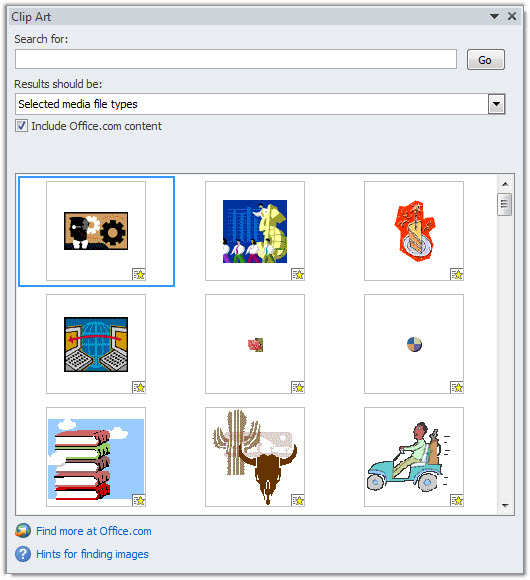
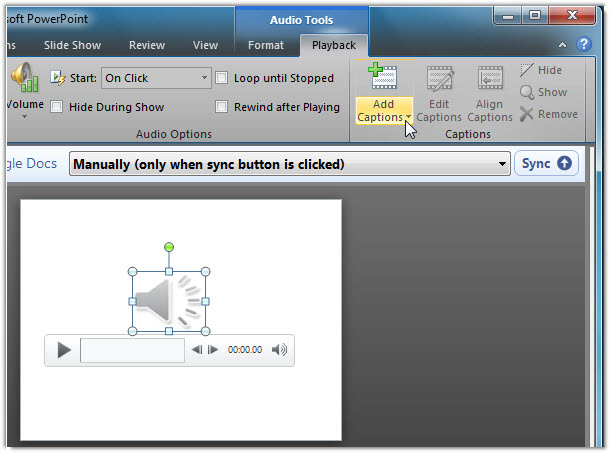
			<div class="infoDetail" style="margin-top: 0px; margin-right: 0px; margin-bottom: 0px; margin-left: 0px; padding-top: 0px; padding-right: 5px; padding-bottom: 0px; padding-left: 5px; font-size: 13px; text-align: justify; position: relative; float: left; line-height: 20px; "> <table border="0" cellpadding="0" cellspacing="0" style="border-collapse: collapse; -webkit-border-horizontal-spacing: 0px; -webkit-border-vertical-spacing: 0px; " width="100%"> <tbody> <tr> <td style="margin-top: 0px; margin-right: 0px; margin-bottom: 0px; margin-left: 0px; padding-top: 3px; padding-right: 3px; padding-bottom: 3px; padding-left: 3px; "> <div id="VietAd" style="margin-top: 0px; margin-right: 0px; margin-bottom: 0px; margin-left: 0px; padding-top: 0px; padding-right: 0px; padding-bottom: 0px; padding-left: 0px; "> <p style="margin-top: 15px; margin-right: 0px; margin-bottom: 0px; margin-left: 0px; padding-top: 0px; padding-right: 0px; padding-bottom: 0px; padding-left: 0px; line-height: 19px; "> <span style="color: rgb(51, 51, 51); "><strong style="font-weight: bold; ">Để có một bài thuyết trình sinh động và thu hút được người xem thì ngoài các yếu tố: nội dung hay, hiệu ứng đẹp, bạn cần phải thêm vào một số âm thanh và video minh họa phù hợp với slide trình diễn của mình.&nbsp;</strong></span>Bài viết sau đây sẽ giới thiệu một vài thủ thuật giúp ích cho việc chèn, quản lý âm thanh và video trên slide.</p> <h2 style="clear: both; font-size: 13px; margin-top: 15px; line-height: 19px; color: rgb(0, 0, 255); "> Chèn âm thanh và video theo nhiều cách</h2> <p style="margin-top: 15px; margin-right: 0px; margin-bottom: 0px; margin-left: 0px; padding-top: 0px; padding-right: 0px; padding-bottom: 0px; padding-left: 0px; line-height: 19px; "> PowerPoint 2010 cung cấp cho người dùng ba cách đơn giản để chèn âm thanh (video) vào slide trình diễn:&nbsp;<em>chèn từ một tập tin trên máy tính, chèn từ thư viện Clip Art, ghi lại âm thanh</em>. Để chèn âm thanh (hoặc video) từ một tập tin trên máy tính của bạn hoặc từ một tập tin trong mạng nội bộ, bạn thực hiện: bấm vào menu&nbsp;<strong style="font-weight: bold; ">In-sert&nbsp;</strong>rồi bấm nút&nbsp;<strong style="font-weight: bold; ">Audio&nbsp;</strong>(hoặc&nbsp;<strong style="font-weight: bold; ">Video</strong>) của mục&nbsp;<strong style="font-weight: bold; ">Media</strong>, chọn&nbsp;<strong style="font-weight: bold; ">Audio f-rom File</strong>&nbsp;(hoặc&nbsp;<strong style="font-weight: bold; ">Video f-rom File</strong>), duyệt đến tập tin cần chèn, bấm&nbsp;<strong style="font-weight: bold; ">In-sert</strong>.</p> <p style="margin-top: 15px; margin-right: 0px; margin-bottom: 0px; margin-left: 0px; padding-top: 0px; padding-right: 0px; padding-bottom: 0px; padding-left: 0px; line-height: 19px; "> Microsoft PowerPoint 2010 hỗ trợ các định dạng âm thanh:<em>&nbsp;ADTS Audio, MP4 Audio, aiff, au, midi, mp3, wav&nbsp;</em>và<em>wma</em>; định dạng video:&nbsp;<em>asf, avi, QuickTime Movie, MP4 Video, mpeg, wmv</em>&nbsp;và&nbsp;<em>Adobe Flash Media</em>. Ngoài ra, bạn còn có thể chèn video từ một địa chỉ liên kết trên Internet bằng cách sao chép mã nhúng do website chứa video cung cấp, ví dụ:&nbsp;<span style="font-family: &#039;Courier New&#039;; "><em>&lt;embed src=http://abc.com/video.wmv type=&quot;application/x-shockwave-flash&quot; width=&quot;425&quot; height=&quot;350&quot;&gt;&lt;/embed&gt;</em></span>.</p> <p style="margin-top: 15px; margin-right: 0px; margin-bottom: 0px; margin-left: 0px; padding-top: 0px; padding-right: 0px; padding-bottom: 0px; padding-left: 0px; line-height: 19px; "> Đối với cách chèn từ thư viện Clip Art, bạn bấm vào&nbsp;<strong style="font-weight: bold; ">Clip Art Audio</strong>&nbsp;(hoặc&nbsp;<strong style="font-weight: bold; ">Clip Art Video</strong>), rồi tìm một đối tượng phù hợp với phần thuyết trình, bấm chuột phải chọn&nbsp;<strong style="font-weight: bold; ">In-sert&nbsp;</strong>hoặc bấm đôi chuột vào đối tượng đó.</p> <p style="margin-top: 15px; margin-right: 0px; margin-bottom: 0px; margin-left: 0px; padding-top: 0px; padding-right: 0px; padding-bottom: 0px; padding-left: 0px; line-height: 19px; text-align: center; "> <img alt="Thủ thuật đối với âm thanh và video trong Microsoft PowerPoint 2010 " src="http://www.quantrimang.com.vn/photos/image/092011/26/PowerPoint-1.jpg" /></p> <p style="margin-top: 15px; margin-right: 0px; margin-bottom: 0px; margin-left: 0px; padding-top: 0px; padding-right: 0px; padding-bottom: 0px; padding-left: 0px; line-height: 19px; "> Ngoài hai cách thực hiện như trên, bạn có thể sử dụng tính năng&nbsp;<strong style="font-weight: bold; ">Record Audio</strong>&nbsp;để ghi lại âm thanh, giọng nói. Trong mục&nbsp;<strong style="font-weight: bold; ">Media&nbsp;</strong>của menu&nbsp;<strong style="font-weight: bold; ">In-sert</strong>, bạn bấm vào&nbsp;<strong style="font-weight: bold; ">Audio&nbsp;</strong>rồi bấm&nbsp;<strong style="font-weight: bold; ">Record Audio</strong>. Hộp thoại<strong style="font-weight: bold; ">&nbsp;Record Sound&nbsp;</strong>xuất hiện, bạn nút thực hiện các tiến trình ghi, ngừng, phát âm thanh, bấm&nbsp;<strong style="font-weight: bold; ">OK&nbsp;</strong>sẽ xuất hiện một biểu tượng hình chiếc loa ở giữa slide trình chiếu, kéo thả biểu tượng này đến vị trí thích hợp.</p> <h2 style="clear: both; font-size: 13px; margin-top: 15px; line-height: 19px; color: rgb(0, 0, 255); "> Tạo phụ đề cho âm thanh và video</h2> <p style="margin-top: 15px; margin-right: 0px; margin-bottom: 0px; margin-left: 0px; padding-top: 0px; padding-right: 0px; padding-bottom: 0px; padding-left: 0px; line-height: 19px; "> Nếu chèn thêm phụ đề vào âm thanh hay video thì sẽ giúp cho người xem hiểu được nhiều hơn về những gì mà người thuyết trình muốn nói. Với add-in&nbsp;<strong style="font-weight: bold; ">Stamp&nbsp;</strong>cho phép chèn phụ đề trực tiếp vào âm thanh và video trong slide trình diễn mà không cần phải trải qua bước xử lý trung gian. Tiện ích miễn phí này có dung lượng 1,52MB chỉ hỗ trợ Microsoft PowerPoint 2010, bạn có thể tải&nbsp;<a href="http://sourceforge.net/projects/stamp-addin" style="color: rgb(51, 102, 255); text-decoration: none; " target="_blank"><strong style="font-weight: bold; ">tại đây</strong></a>. Sau khi tải về, bạn tiến hành giải nén và bấm đôi chuột vào tập tin thực thi để cài đặt.&nbsp;<strong style="font-weight: bold; ">Lưu ý</strong>, bạn cần đóng các cửa sổ ứng dụng Office đang mở.</p> <p style="margin-top: 15px; margin-right: 0px; margin-bottom: 0px; margin-left: 0px; padding-top: 0px; padding-right: 0px; padding-bottom: 0px; padding-left: 0px; line-height: 19px; "> Để thực hiện, bạn bấm chọn vào tập tin âm thanh (video) đã chèn, rồi vào menu&nbsp;<strong style="font-weight: bold; ">Playback&nbsp;</strong>trong nhóm&nbsp;<strong style="font-weight: bold; ">Audio Tools</strong>&nbsp;(hoặc Video Tools), bấm<strong style="font-weight: bold; ">&nbsp;Add Captions&nbsp;</strong>chọn&nbsp;<strong style="font-weight: bold; ">Cre-ate Captions</strong>.</p> <p style="margin-top: 15px; margin-right: 0px; margin-bottom: 0px; margin-left: 0px; padding-top: 0px; padding-right: 0px; padding-bottom: 0px; padding-left: 0px; line-height: 19px; text-align: center; "> <img alt="Thủ thuật đối với âm thanh và video trong Microsoft PowerPoint 2010 " src="http://www.quantrimang.com.vn/photos/image/092011/26/PowerPoint-2.jpg" /></p> <p style="margin-top: 15px; margin-right: 0px; margin-bottom: 0px; margin-left: 0px; padding-top: 0px; padding-right: 0px; padding-bottom: 0px; padding-left: 0px; line-height: 19px; "> Trong hộp thoại Caption Editor hiện ra, bạn có thể bấm nút&nbsp;<strong style="font-weight: bold; ">Play&nbsp;</strong>để xem thử âm thanh (video), rồi bấm&nbsp;<strong style="font-weight: bold; ">Add Caption&nbsp;</strong>để thêm vào các câu phụ đề. Ứng với mỗi câu phụ đề, bạn cần phải quy định thời điểm hiển thị và biến mất phụ đề, bằng cách bấm vào từng câu trong danh sách phụ đề rồi bấm vào hai nút&nbsp;<strong style="font-weight: bold; ">Set Start Time</strong>,&nbsp;<strong style="font-weight: bold; ">Set End Time</strong>&nbsp;để nhập vào hai thời điểm đó. Khi xong, bạn bấm&nbsp;<strong style="font-weight: bold; ">Cre-ate Captions&nbsp;</strong>rồi trình chiếu slide PowerPoint sẽ thấy phụ đề nằm bên dưới khung âm thanh (video). Muốn chỉnh sửa phụ đề, bạn bấm chọn video và bấm&nbsp;<strong style="font-weight: bold; ">Edit Captions&nbsp;</strong>trong menu&nbsp;<strong style="font-weight: bold; ">Playback</strong>, rồi xóa phụ đề, nhập phụ đề mới hoặc chỉnh sửa thời gian xuất hiện phụ đề, bấm&nbsp;<strong style="font-weight: bold; ">Up-date Captions</strong>&nbsp;để hoàn tất.<br  /> <br  /> Lưu ý, đối với bài thuyết trình có chèn tập tin video và âm thanh thì bạn nên tạo một thư mục lưu trữ các tập tin này. Khi bạn sao chép bài thuyết trình cùng với thư mục lưu trữ đã tạo qua một máy tính khác thì vẫn giữ nguyên được các liên kết đã chèn.</p> </div> </td> </tr> </tbody> </table></div><div style="margin-top: 0px; margin-right: 0px; margin-bottom: 0px; margin-left: 0px; padding-top: 0px; padding-right: 0px; padding-bottom: 0px; padding-left: 0px; float: left; "> <table border="0" cellpadding="0" cellspacing="0" style="border-collapse: collapse; -webkit-border-horizontal-spacing: 0px; -webkit-border-vertical-spacing: 0px; " width="676px"> <tbody> <tr> <td align="right" colspan="5" style="margin-top: 0px; margin-right: 0px; margin-bottom: 0px; margin-left: 0px; padding-top: 0px; padding-right: 0px; padding-bottom: 0px; padding-left: 0px; "> &nbsp;</td> </tr> <tr> <td class="tacgia" colspan="5" style="margin-top: 0px; margin-right: 0px; margin-bottom: 0px; margin-left: 0px; padding-top: 0px; padding-right: 0px; padding-bottom: 0px; padding-left: 10px; color: rgb(48, 48, 48); font-size: 12px; font-weight: bold; "> <i>Theo XHTT</i></td> </tr> </tbody> </table></div><br  />
		</div>
	</div>
	<div id="footer" class="clearfix">
		<div id="url">
			<strong>URL của bản tin này: </strong><a href="https://suachuamaytinh.vn/Kien-thuc-tin-hoc/Thu-thuat-doi-voi-am-thanh-trong-PowerPoint-2010-599.html" title="Thủ thuật đối với âm thanh trong PowerPoint 2010">https://suachuamaytinh.vn/Kien-thuc-tin-hoc/Thu-thuat-doi-voi-am-thanh-trong-PowerPoint-2010-599.html</a>

		</div>
		<div class="clear"></div>
		<div class="copyright">
			&copy; SỬA MACBOOK SỬA CHỮA MACBOOK IMAC MAC PRO CHỮA LAPTOP HÀ NỘI
		</div>
		<div id="contact">
			<a href="mailto:ceo@suachuamaytinh.vn">ceo@suachuamaytinh.vn</a>
		</div>
	</div>
</div>
        <div id="timeoutsess" class="chromeframe">
            Bạn đã không sử dụng Site, <a onclick="timeoutsesscancel();" href="https://suachuamaytinh.vn/#">Bấm vào đây để duy trì trạng thái đăng nhập</a>. Thời gian chờ: <span id="secField"> 60 </span> giây
        </div>
        <div id="openidResult" class="nv-alert" style="display:none"></div>
        <div id="openidBt" data-result="" data-redirect=""></div>
<div id="run_cronjobs" style="visibility:hidden;display:none;"><img alt="" src="/index.php?second=cronjobs&amp;p=f6236qAI" width="1" height="1" /></div>
<script src="https://suachuamaytinh.vn/assets/js/jquery/jquery.min.js"></script>
<script>var nv_base_siteurl="/",nv_lang_data="vi",nv_lang_interface="vi",nv_name_variable="nv",nv_fc_variable="op",nv_lang_variable="language",nv_module_name="news",nv_func_name="savefile",nv_is_user=0, nv_my_ofs=-4,nv_my_abbr="EDT",nv_cookie_prefix="nv4c_w6h9e",nv_check_pass_mstime=1738000,nv_area_admin=0,nv_safemode=0,theme_responsive=0,nv_is_recaptcha=0,XSSsanitize=1;</script>
<script src="https://suachuamaytinh.vn/assets/js/language/vi.js"></script>
<script src="https://suachuamaytinh.vn/assets/js/DOMPurify/purify.js"></script>
<script src="https://suachuamaytinh.vn/assets/js/global.js"></script>
<script src="https://suachuamaytinh.vn/assets/js/site.js"></script>
<script src="https://suachuamaytinh.vn/themes/default/js/news.js"></script>
<script src="https://suachuamaytinh.vn/themes/default/js/main.js"></script>
<script src="https://suachuamaytinh.vn/themes/default/js/custom.js"></script>
<script type="application/ld+json">
        {
            "@context": "https://schema.org",
            "@type": "Organization",
            "url": "https://suachuamaytinh.vn",
            "logo": "https://suachuamaytinh.vn/uploads/shop-cong-nghe-vdc.png"
        }
        </script>
<script src="https://suachuamaytinh.vn/themes/default/js/bootstrap.min.js"></script>
</body>
</html>